Posts

Add Users to a Active Directory Group with Powershell and remove them from the old group

Image
Moving a big amount of Users from one AD Group to another can be easily done with Powershell.  At first create a .txt file where you can copy all of your Users you want to remove from an old AD Group and add them to a new one. I called this "userslist.exe" and placed it under C:\Users\etc Things you need to replace are marked in RED $users = Get-Content C:\ YOUR_PATH \userslist.txt $userId = @() foreach ($user in $users) { $userId += Get-ADUser $user } #AD Group Binding $oldGroup = Get-ADGroup ' YOUR_OLD_GROUP_NAME ' $newGroup = Get-ADGroup '  YOUR_NEW_GROUP_NAME ' foreach ($user in $userId) {    Remove-ADGroupMember -Identity $oldGroup -Members $user -Confirm:$false    Add-ADGroupMember -Identity $newGroup -Members $user -Confirm:$false      } 

How to: move FSMO Roles, Demote and re-promote a Domain Controller with PowerShell

Image
Here are the commands you need if you want to demote and re-promote a Domain Controller with PowerShell Move FSMO Roles: Move-ADDirectoryServerOperationMasterRole -Identity nameofthedcwhereyouwanttomovetheroles -OperationMasterRole pdcemulator, ridmaster, infrastructuremaster, schemamaster, domainnamingmaster (the roles you want to move) Check if everything worked: Get-ADDomain | Select-Object InfrastructureMaster, RIDMaster, PDCEmulator Demote Demote Test Test-ADDSDomainControllerUninstallation -DemoteOperationMasterRole - LastDomainControllerInDomain -RemoveApplicationpartitions (Only needed when it is the last Domain Controller in your Environment) Start Demote Uninstall-ADDSDomainController -DemoteOperationMasterRole -RemoveApplicationPartition Promote Promote: Windows features Install-WindowsFeature -name AD-Domain-Services -IncludeManagementTools Test-Promote: Test-ADDSForestInstallation -DomainName your.dom...

How to: Create a Client Certificate for LDAPS with OpenSSL

Image
Today I will introduce you my new article on how to create a client certificate with OpenSSL so that you can use it for LDAPS You need to create two files in your new folder which we will need later on (I prefer notepad++ for the creation of my files): 1             1.  Your request.inf file 2             2.  Your v3ext.txt file 1.     Request.inf (save as .inf with notepad++) [Version]  Signature="$Windows NT$"  [NewRequest]  Subject = "CN= your-active-diretory.fqdn” f.ex : “simonAD.testinfo.com” (enter the FQDN of your AD Server)  KeySpec = 1  KeyLength = 2048 (enter the key length with fits your need. Some say you need to take at leas 2048 to make LDAPS work)  Exportable = TRUE  MachineKeySet = TRUE  SMIME = FALSE  PrivateKeyArchive = FALSE  UserProtected = FALSE  UseExistingKeySet = FALSE ...

Windows 10: Using CopyProfile for the “Start Menu” has been deprecated

Image
The Customer had problems with Windows 10 and also with Server 2016 where the TileBar or the Startmenue were not displayed right and didn't work like expected. Therefore he used Sysprep for Derfaul UserProfile to solve the problem. Now Microsoft announced that this is not an supported solution. https://blogs.technet.microsoft.com/yongrhee/2018/03/12/windows-10-using-copyprofile-for-the-start-menu-has-been-deprecated/

Windows Start Menu not opening anymore with Server 2016

Image
At a Customer environment (Server 2016) we had the problem that users who tried to change their personal settings for their start screen to “Use Start full screen” couldn’t open their Start menu after signing in again after logout. Bu it works as long as they are logged in after the settings were changed. The default view of the menu which the user wants to change Under Settings - > Personalization -> Start ->Use Start full screen, you need to set the settings to on Afterwards it will look like this as long as you're signed in But as soon as you log out and sign in again you can't open your Start Menu again. Nothing happens when you click the Windows symbol. You need to change the settings back and it will work. As far as I know there is no fix at the moment for this one.

Remote use of Microsoft SysInternals: example Procdump

Image
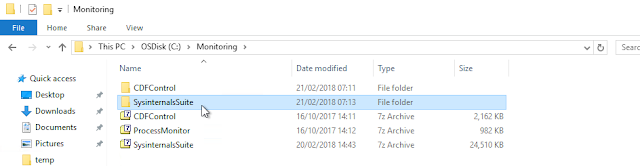
Download the MicrosoftSysinternalsSuite and move it to your Server. https://docs.microsoft.com/en-us/sysinternals/downloads/procdump Unzip it anywhere you want it to place In our example I used procdump because I needed a dump from a user to send it to the vendor. Go in sysinternals and search for your needed program: Afterwards copy it via unc path to the user’s computer. In case of Procdumb you need to copy both executable. I created the folder temp there. Afterwards you need the PID of the Programm you want to check. I needed wfica32. If the user doesn’t have the right to execute taskmanager or extend the view for the PID, you can find out the PID with a Powershellcommand: Get-Process - ComputerName NameOfUserComputer -Name ProcessName Afterwards open a CMD and move to your sysinternalsuite folder on your server Then execute following: PSEXEC \\< computername > c:\temp\procdump.exe -e -ma -h < PID > ...

Check your Environment for Spectre and Meltdown

Image
Like everybody of us heard we have Spectre and Meltdown as new threads for our customer environments. Microsoft brought out an article where they describe the threads and vulnerabilities and some recommendations. https://support.microsoft.com/en-us/help/4073119/protect-against-speculative-execution-side-channel-vulnerabilities-in This is just a short documentation. If you want a more detailed documentation, see the Microsoft link. I just want to make you aware of a PowerShllscript which checks your installed patches and what you need to patch to clean the situation in your environment. https://aka.ms/SpeculationControlPS - Download the ZIP and extract everything to a folder.  - Go to the folder with the extracted PowerShell-Module  and run following command: $SaveExecutionPolicy = Get-ExecutionPolicy Set-ExecutionPolicy RemoteSigned -Scope Currentuser -Force Import-Module .\SpeculationControl.psd1 Get-SpeculationControlSettings Set-ExecutionPo...