Posts

How to: export all Outlook Singantures from User Profiles to specified Folder
Image
This Script will export your Outlook Signatures from a User Pprofile Management Share (like Citrix UPM) and create a folder on a specified Path were it stores the Signatures so that you can import it on a new share or sth like that. $UserFolders = Get-ChildItem \\ Example$ \ XAProfile ( Path to your User files) $path2 = " exampleFolder \AppData\Roaming\Microsoft\Signatures" (Path to Signatures in your Userfolder) $Destination = " C:\Signatures " ( your export path ) foreach ($Item in $UserFolders) {robocopy /copy:DAT \\ Example$ \ XAProfile \$item\ examplefolder \AppData\Roaming\Microsoft\Signatures  $Destination\$Item }

Wrong language in "devices and drives"

Image
One of our customers had a wrong language setup on his published explorer.exe when opening it. The hole explorer.exe was on English, Except the "Devices and drives". They were on another language.    His environment was deployed via MCS on Citrix 1912 LTSR. The Master Image, the Server and the customers devices were all on English. After checking the Master Image I did following changes to get it working: Under:  Control Panel\All Control Panel Items\Language\Advanced settings set following settings: Under copy settings the yellow marked were set in German instead of English: After copying the settings with the checkboxes everything was now in English: After rolling out the master image again everything was now like expected.

How to activate logging for Citrix Exploit 1 and 2

Image
Daniel Weppeler postet a link on how to activate Citrix Logging for Exploit 1 and 2: https://twitter.com/_DanielWep/status/1217022904073801728 #CVE201919781 #Citrix Create MessageAction: add audit messageaction MsgAct_CVE WARNING "\"CVE Attack from IP \"+CLIENT.IP.SRC+\" - URL: \"+HTTP.REQ.URL.PATH.HTTP_URL_SAFE+\" (headers: \"+HTTP.REQ.FULL_HEADER.HTTP_HEADER_SAFE+\")\"" -logtoNewnslog YES Enable userDefinedAuditlog: set audit syslogParams -logLevel ALL -userDefinedAuditlog YES set audit nslogParams -logLevel ALL -userDefinedAuditlog YES Bind #Syslog Message Action to CVE Responder Policy: set responder policy ResPol_Fix_CVE-2019-19781 -logAction MsgAct_CVE

How to check, if your NetScaler is affected by CVE-2019-19781: Citrix Exploit 1 and 2

Image
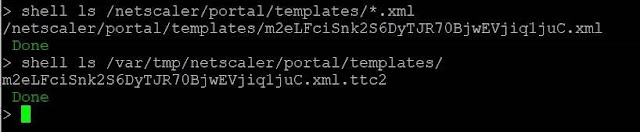
You can check if your NetScaler is affected by CVE-2019-19781 with following commands: Indicators of compromise To get an idea wether your Citrix ADC is compromised I’d recommend to perform (at least!) the following steps Template files The exploits all write files to two different directories. Scan those via: shell ls /netscaler/portal/templates/*.xml shell ls /var/tmp/netscaler/portal/templates shell ls /var/vpn/bookmark/*.xml If you find files similar to the following you are likely to be compromised Apache Log files In addition, attempts to exploit the system leave traces in the Apache httpaccess log files. Those you can validate via: shell cat /var/log/httpaccess.log | grep vpns | grep xml shell cat /var/log/httpaccess.log | grep "/\.\./" shell gzcat /var/log/httpaccess.log.*.gz | grep vpns | grep xml shell gzcat /var/log/httpaccess.log.*.gz | grep "/\.\./" The following output is found on a system that was exploited: Howev...

Citrix Server stays down after scheduled reboot

Image
We had the situation that randomly some Terminalserver stayed down after the scheduled reboot from Studio. They needed to be restarted  manually. To avoid this Problem following will do the trick. Create a GPO with the below registry entries on all DDC and restart the broker service. Also on Restart Schedule on DDC at restart duration kindly select restart all machines with in 30 minutes or 1 hr instead of all at the same time. HKEY_LOCAL_MACHINE\SOFTWARE\Citrix\DesktopServer\RebootSchedule Name: ShutdownTimeoutRecovery Type: DWORD Value: 1 (Decimal) HKEY_LOCAL_MACHINE\Software\Citrix\DesktopServer Name : MaxRegistrationCompletionTimeSecs Type : Reg_Dword Value : 2400(Decimal) Name : MaxFailedRegistrationsAllowed Type : Reg_Dword Value : 0xFFFFFFFF (Hex)

Export a list of all XenApp 7.x published applications via Powershell

Image
If you want to export a list of all published applications used in your environment you can do this with PowerShell. First add the Citrix PowerShell snapin: asnp Citrix.* Then run the Command which will export a TXT File which contains the Published Name and the Application Name. This can be extended to almost anything you need. More parameters you'll find in the Citrix Developer Documentation: https://developer-docs.citrix.com/projects/delivery-controller-sdk/en/7.17/Broker/Get-BrokerApplication/ MaxRecordCount 300 extends the output to 300 objects. The default value is 250. If you have more then 250 Applications you need this value.  Get-Brokerapplication -MaxRecordCount 300 | Select-Object PublishedName,ApplicationName | fl >c:\application.txt Then you'll find the TXT file in your specified output folder: It will be displayed like this:

Empty start menu with Citrix Profile Manager after upgrading to XenApp 7.15 LTSR CU3

Image
After upgrading from XenApp version 7.11 to 7.15 LTSR CU3 the start menu for all Users stays empty. There are no programms or other shortcuts left which were added from the User. As workaround there is a registry empty which will solve the problem. update -> HKEY_CURRENT_USER -> Software\Microsoft\Windows\CurrentVersion\ImmersiveShell\StateStore -> ResetCache -> REG_DWORD -> 00000001 Afterwards your start menu will roam just like before without any issues.

Citrix ShareFile - files are not scanned by anti virus software

Image
If the uploaded files weren't scanned from the anti virus software you should check the ShareFile Logs. You will find an error saying: The remote server returned an error: (407) Proxy Authentication Required As solution you'll need to restart the ShareFile Server or the ShafreFile Service. The error is caused by changes on your proxy because ShareFile won't re-authenticate after the first authentication.

Slow login after shutdown XA6.5 Data Collector

Image
If your Data Collector is facing a problem with slow login times after a shutdown you'll find a solution for this problem in a blog post from my Co-worker and CTA Matthias Schlimm: Click here for the solution

New product names for Citrix

Image
Like most of you may heard, Citrix has changed again their product names. Nothing the world really needs but we have to deal with it. So here we go: Citrix Receiver      = Workspace App XenApp                 = Virtual Apps XenDesktop          = Virtual Desktops XenServer             = Citrix Hypervisor NetScaler ADC     = Citrix ADC A full list you'll find here: citrix-product-guide/

Private fix before installing Citrix 7.15 CU2 for VDA

Image
Before you install the version 7.15 CU2 for VDA you need to get a private fix (LC9648) from Citrix. Otherwise it can happen that your black screen error when booting your provisioned machines still exists. continued-problems-with-black-screen-at-session-start-with-windows-10

Citrix and Mouse cursor on 2K Monitors

Image
Mouse cursor disappearing in Citrix sessions. Mostley on 2K Monitors with a scale of 150%. When changing the scale to 125% or 175% it works. Due to the fact that we need to stay with 4.9 LTSR we couldn't use version 4.11 were this problem is fixed. You can solve this problem with a private fix you can request from Citrix for version 4.9 LTSR

Citrix: Mouse Cursor is distorted or disappearing with 2K Monitors

Image
One of our Customer had a problem with his mouse cursor in a Citrix Session. The mouse cursor of the employees were distorted or disappearing when they used a 2K Monitor. The error is known like you can see under point 4 and 5: CTX229052 Windows 10 Fall Creators Update (v1709) – Citrix Known Issues The error is solved in Citrix Receiver version 4.11 like you can read here: Citrix Receiver for Windows 4.11 solved Problems Unfortunately the customer uses LTSR and we are not able to update from 4.9 LTSR to 4.11. We hoped that the fix will be in CU2 which will be released soon.  The Cursor problems won't be fixed in CU2. The Fix will be included in CU3.  But it's possible to get a private Fix for this error when contacting Citrix Support . That's how we solved the problem.

Citrix PVS | Win2016 target devices not booting

Image
A customer Win2016 target devices weren't booting or sporadically booting anymore after updating PVS from 7.13 to 7.15 LTSR. They stuck at the Windows Logo. When we hard rebooted a few times somehow they came up after a while. Citrix now presented a private fix for this issue. See: PVS 7.15 | Win2016 target devices not booting after upgrade to PVS 7.15 LTSR

Citrix: User processes are still active after Log-out

Image
What happened? In a customer environment they had the problem that the processes from logged out users are still active and couldn't been closed from the Service Desk. It's a 7.13 XenApp provisioned environment on Server 2016 with Sharefile. And that was the problem. After a bit of investigating we found out that every time a user has Citrix SharFile Drive Mapper open (exact doing see in "When does the error occur") the Log-out process will be blocked and t he explorer from the connected users isn't working anymore. As soon as we closed the Drive Mapper process the running processes from the logged out user closed immediately. We could reproduce the error with ShareFile Version 3.6 on Server 2016 and Windows 10. We couldn't reproduce the error with ShareFile 3.6 on Windows 7 and Server 2008 R2 it woked correctly here. When does the error occur? Every time we moved a file in our Drive Mapper and tried to open it directly from Drive Mapper When w...

Hide your Desktop Tab in StoreFront for only displaying App Tab

Image
If you want to present your users the desktops and the published apps in one pane you need to treat your dekstop as apps. You can do this with a small POSH command. This allows you to have your published applications and your desktops in one screen and you don’t need to switch. Run POSH as administrator CD to …\Program Files\Citrix\Receiver StoreFront\Scripts Run: Import-Module .\ImportModules.ps1 Afterwards run: Set-EnhancedEnumerationOptions -siteId 1 -storeVirtualPath /Citrix/Internal -treatDesktopsAsApps $true Set-EnhancedEnumerationOptions -siteId 1 -storeVirtualPath /Citrix/External -treatDesktopsAsApps $true When you go back to your Storefront, it should look like this:

Implementing User Acceptance Test (UAT) in a existing XenApp 7.13 environment

Image
I had to implement a UAT in an existing XenAPP 7.13 environment. Therefore i used Zones for realizing this. You can use this feature since version 7.7. As installation guide I followed the blog article from my co-worker Matthias Schlimm (Citrix CTA). You find is full manual here: Citrix XenApp / XenDesktop – Zone preference

Upgrade Citrix XenApp from 7.13 to 7.15 LTSR

Image
I will descripe on this site how we can update the XenApp Infrastructure from XenApp 7.13 to XenApp 7.15 LTSR. I'm not the first with such a documentation, but I want to share my experience with you. 1.0 Hints for updating XenApp to Version 7.15.1 Make sure that the Citrix Telemetry Service is stopped. Otherwise the update process will fail.  1.1 Back up the Delivery Controller databases Before you can start with the Citrix update process you need to back up the Citrix databases. These are: Site – stores running site configuration, current session state and connection info. Logging – Information about site configuration changes and administrative activities (only enabled when configuration logging is enabled) Monitoring – stores Director data, like session and connection information. 1.2 Upgrade Director Update your Citrix Director if it is installed on a separate machine from your Delivery Controllers After you inserted the Citrix XenApp/XenDesktop 7.15 Edi...